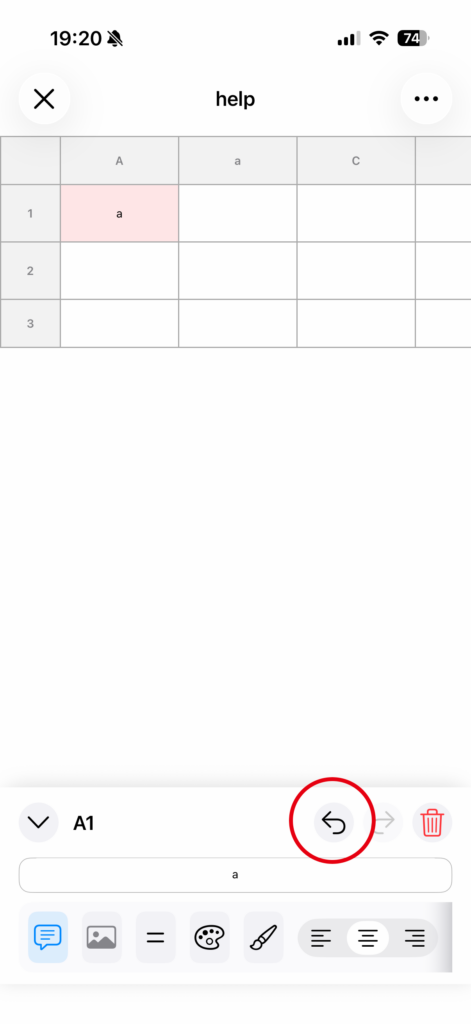
Editing a Cell
1. Tap the cell you want to edit
When you tap a cell, the cell editing panel appears at the bottom of the screen.
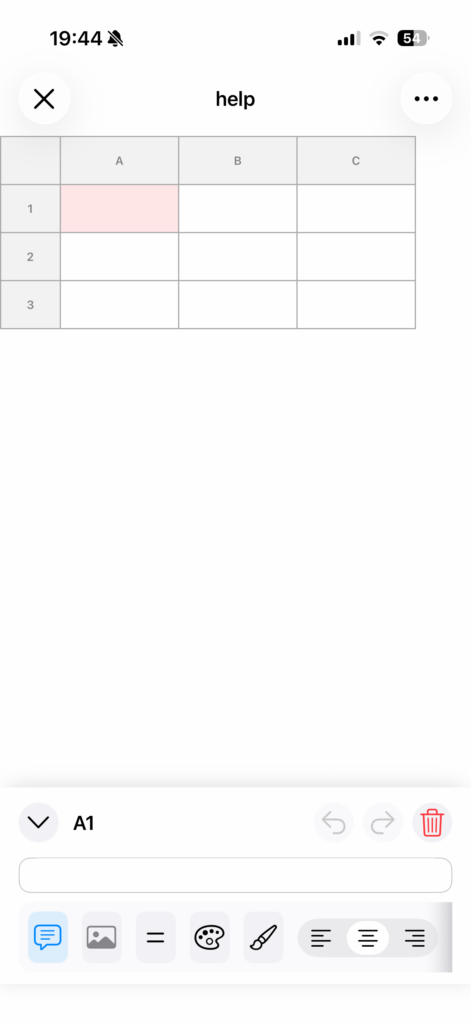
2. Enter or change the content
You can update the cell by entering text.
You can also change the text color, background color, and font size as needed.
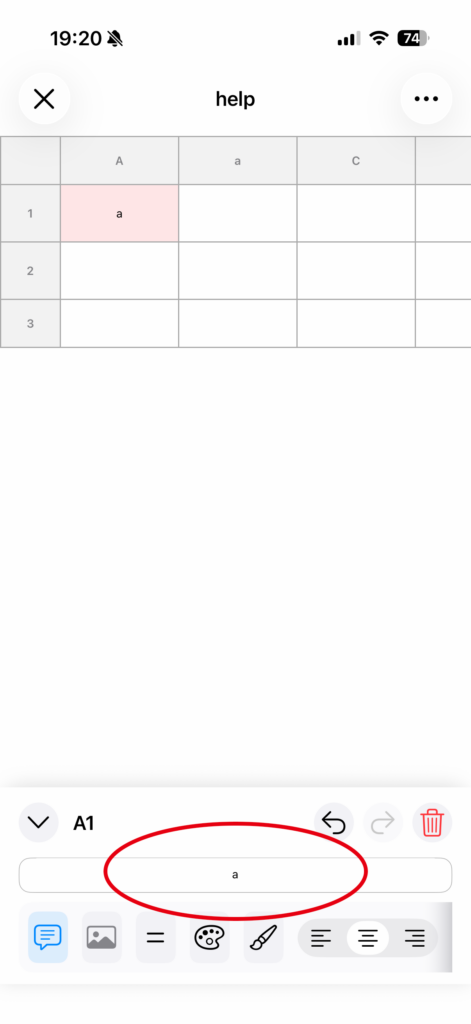
3. Confirm the edit
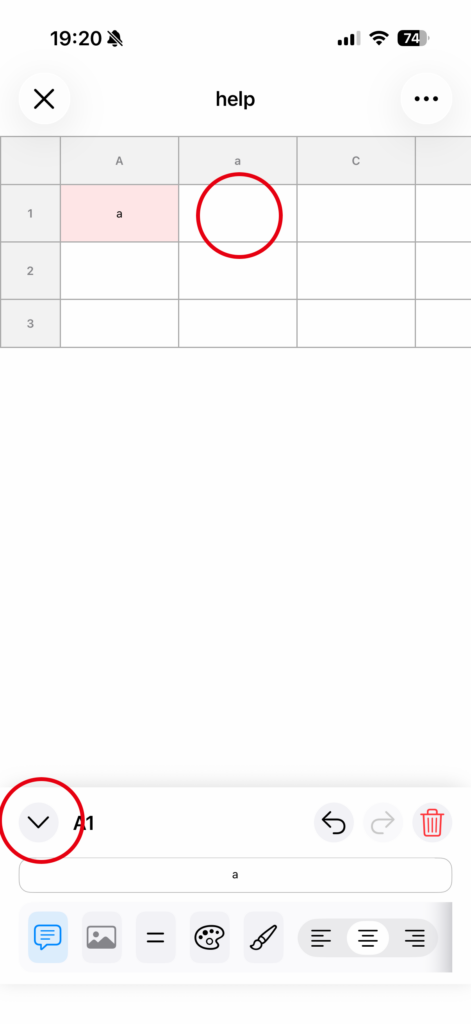
Your changes are confirmed in any of the following ways:
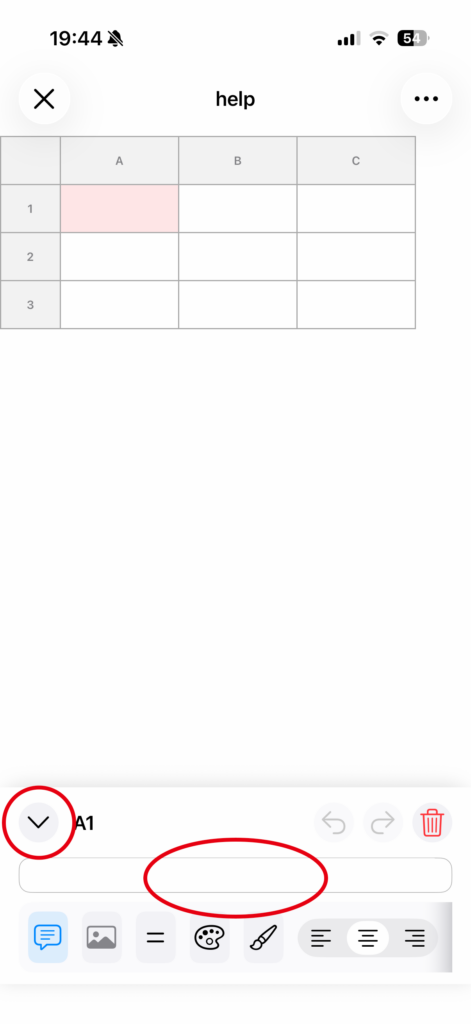
• Tap the panel’s close button
• Tap another cell
• Tap outside the cell
Deleting a Cell
Method 1: Delete using the delete button (recommended)
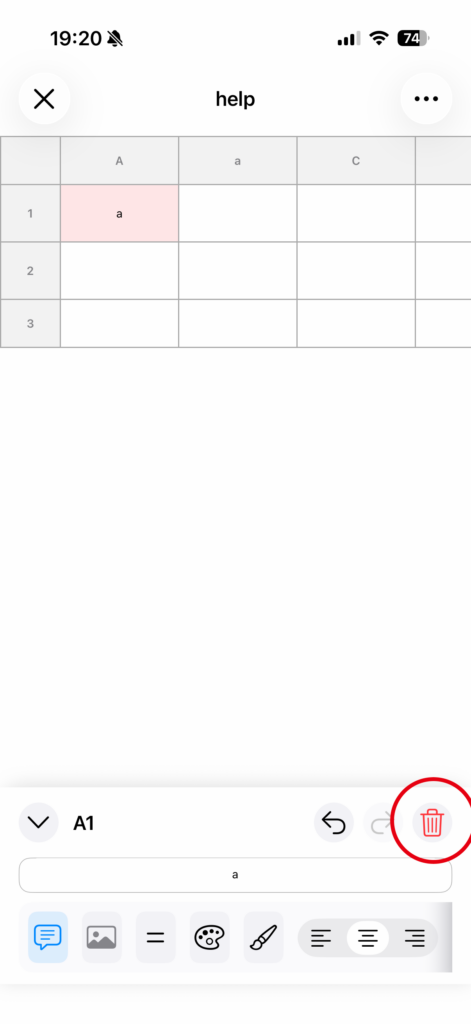
Open the cell you want to delete, then tap the trash button in the editing panel to clear the cell’s contents.
Method 2: Clear the content and confirm
You can also delete the contents by removing all text in the cell and then confirming the edit.
Notes
If you edit or delete something by mistake, you can use Undo to return to the previous state.