This page explains how to delete the contents of a selected range all at once.
Steps to Clear a Range
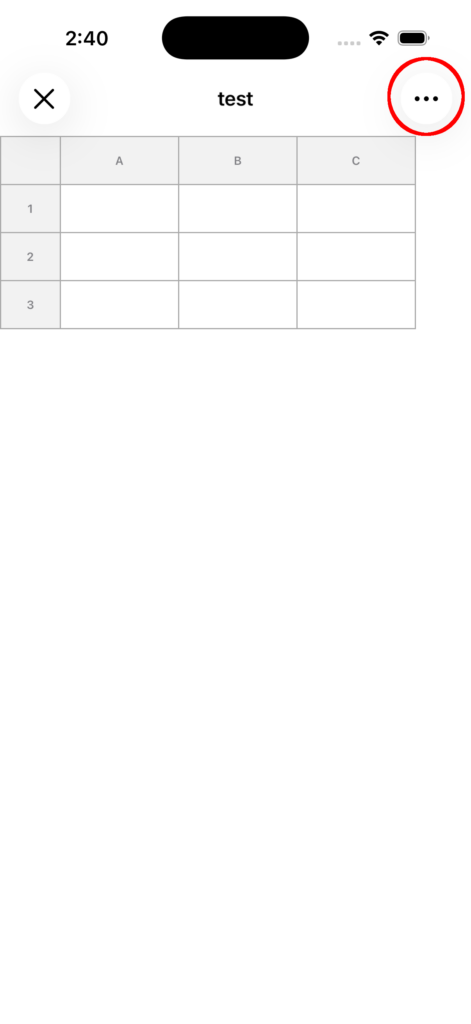
1. Open the top-right menu
Tap the menu (…) in the top-right corner of the sheet screen.
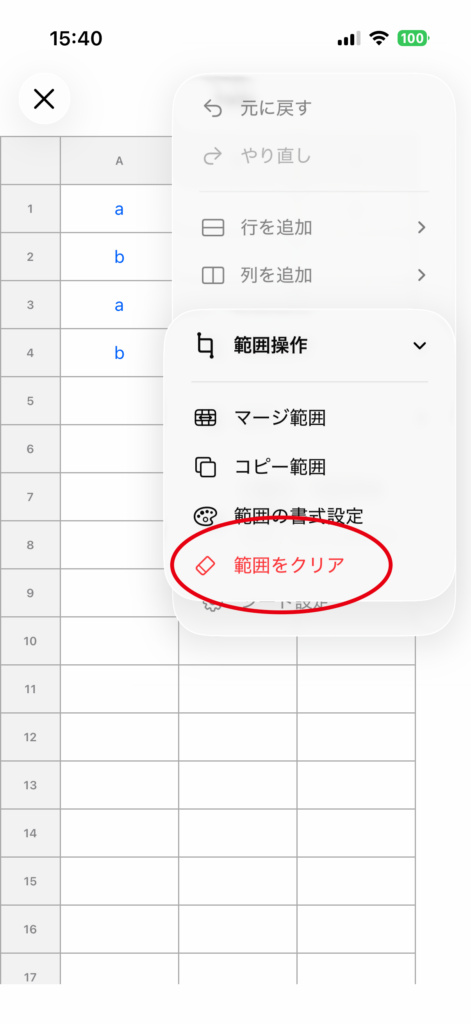
2. Select Clear Range
Select Range Operations → Clear Range.
3. Select the range to clear
Tap the starting cell, then tap the ending cell to select the range.
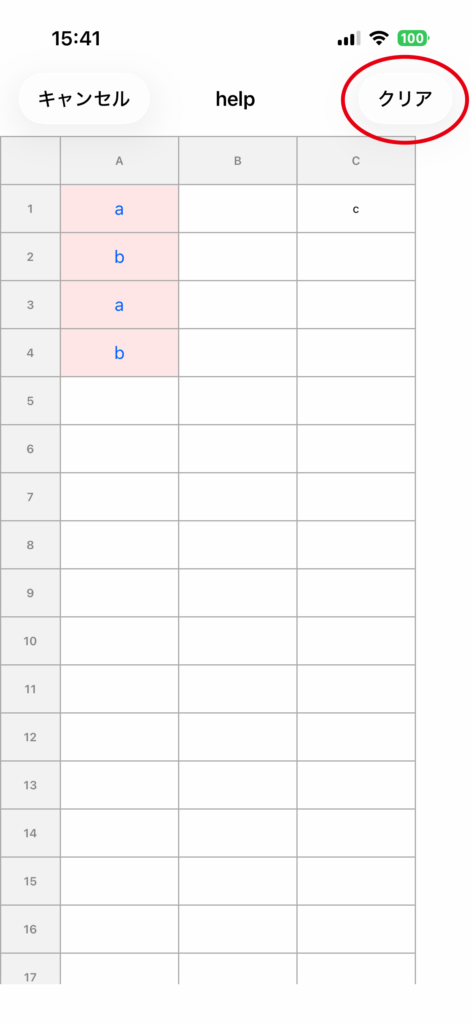
4. Clear the range
Tap Clear in the top-right corner. When the confirmation dialog appears, select Clear.
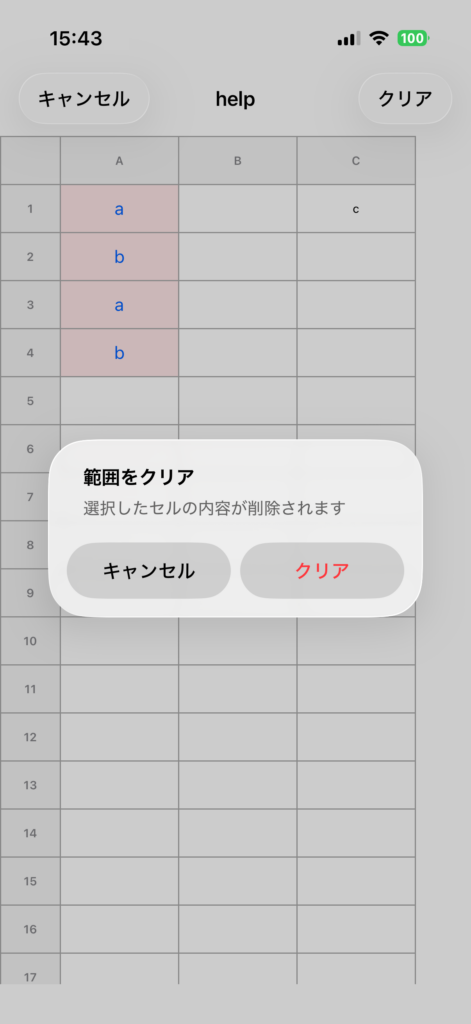
State After Clearing
- The contents of the cells in the selected range, including text, formulas, and images, will be deleted.
- If the selected range includes merged cells, those cells will also be unmerged.
Notes
- This operation applies to the entire selected range. Please check the selected range before running it.
- If you delete something by mistake, you can use Undo to restore it.