This page explains how to add rows and columns at any position using the row number and column header menus.
Insert a Row at a Specific Position
1. Press and hold the row number
Press and hold the row number near where you want to add a row to open the menu.
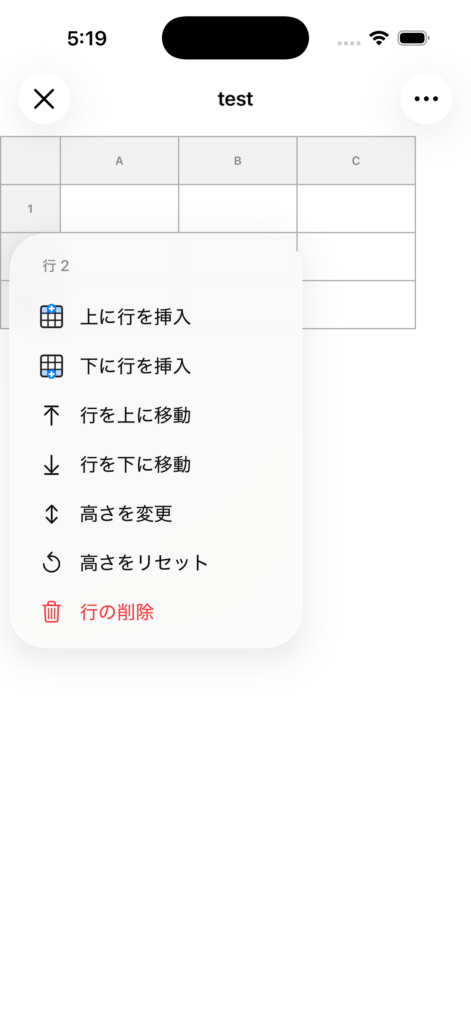
2. Select the insertion direction
Select one of the following as needed.
- Insert Above
- Insert Below
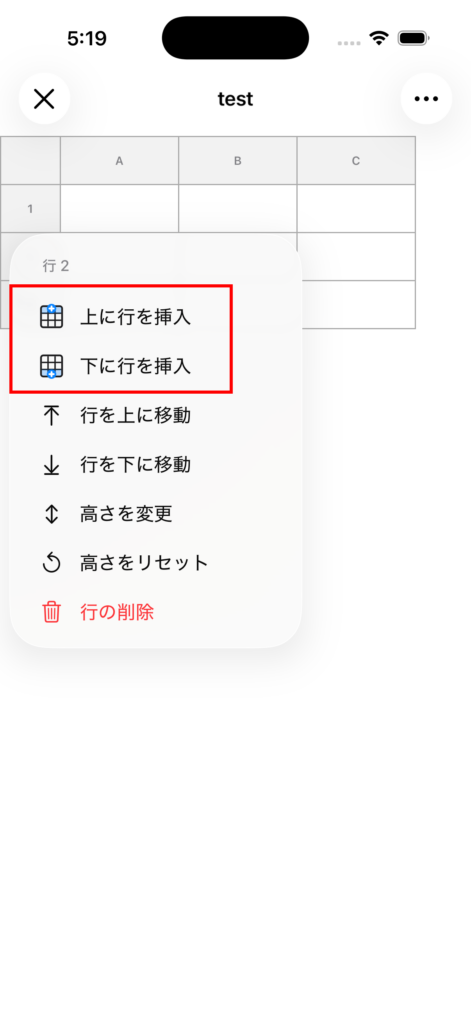
3. Insertion complete
One new row will be added at the selected position.
Insert a Column at a Specific Position
1. 列見出しを長押しする
Press and hold the column header (A, B, C, etc.) near where you want to add a column to open the menu.
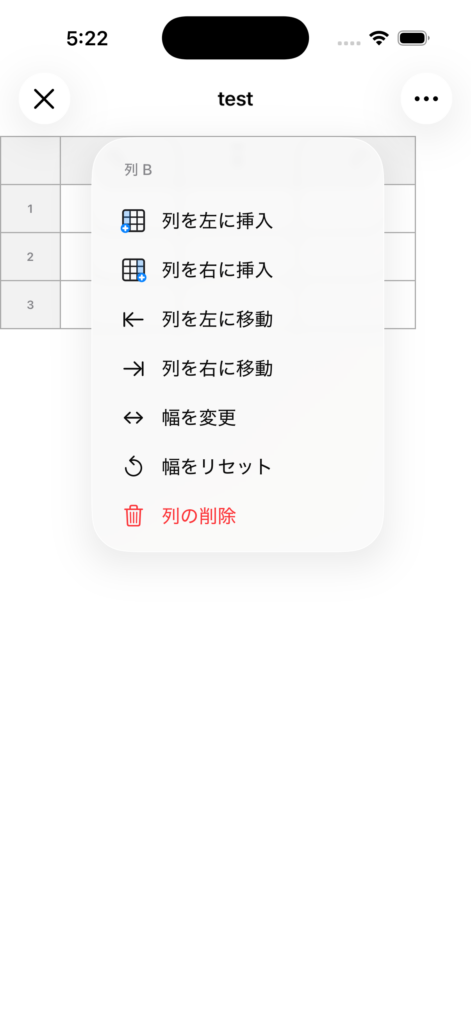
2. Select the insertion direction
Select one of the following as needed.
- Insert Left
- Insert Right
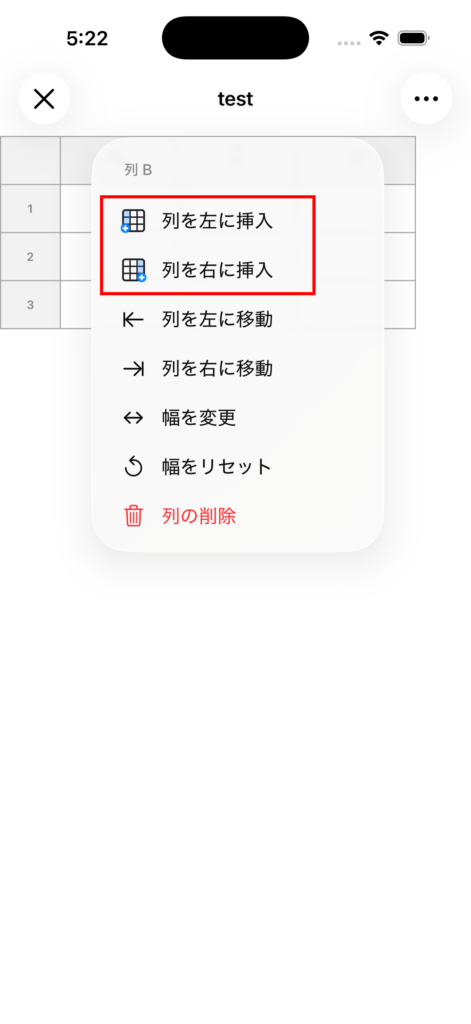
3. Insertion complete
One new column will be added at the selected position.
Notes
- If you want to add rows or columns at the end, you can also use Add Row / Add Column from the top-right menu.
- After insertion, the existing data positions will be automatically shifted and preserved.
- If you want to undo the operation, use Undo.