This page explains how to configure frozen rows and frozen columns.
Even in a large sheet, you can scroll while keeping the headers visible at all times.
Open the Settings Screen
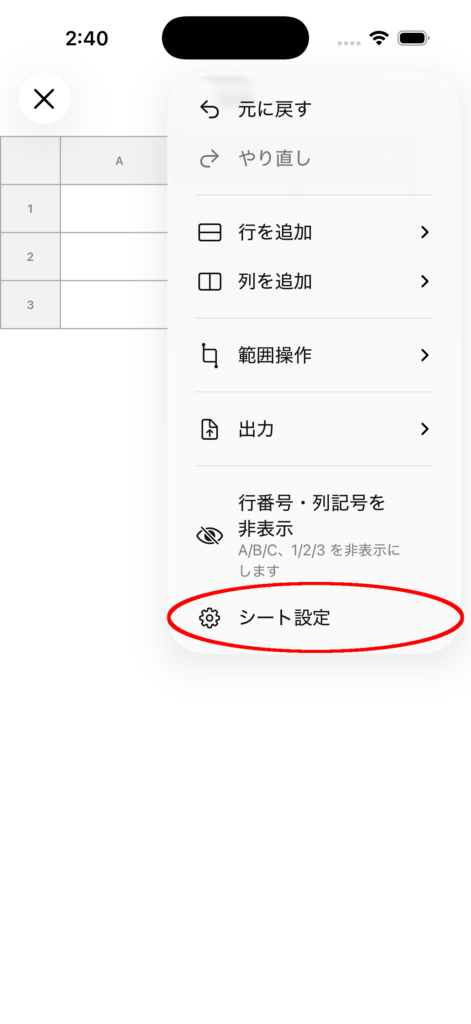
1. Open the top-right menu
Tap the menu (…) in the top-right corner of the sheet screen.

2. Open Sheet Settings
Select Sheet Settings.
Set Frozen Columns
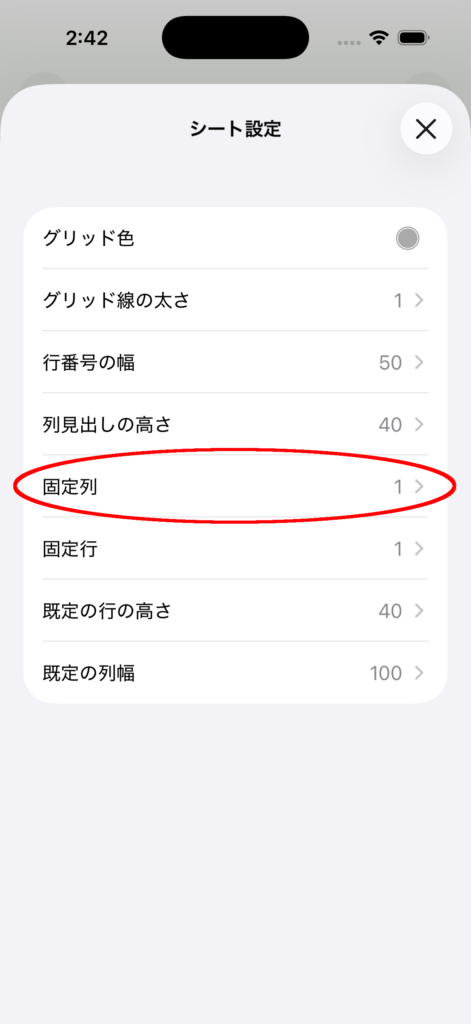
1. Select “Frozen Columns”
Tap Frozen Columns in the settings list.
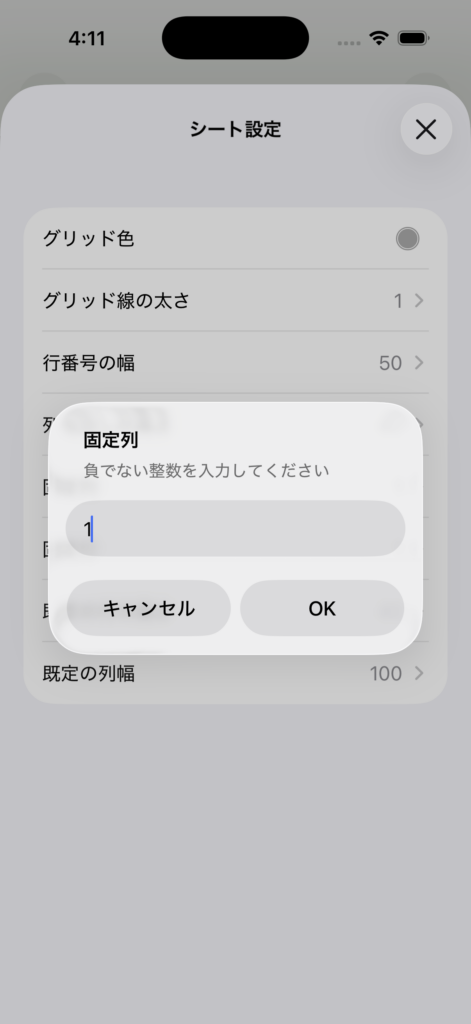
2. Enter the number of columns to freeze
Enter the number of columns you want to freeze (0 or more), then confirm.
3. Check the result
Even when you scroll horizontally, the specified number of columns will remain fixed on the left side.
Example when Frozen Column is set to 2
Set Frozen Rows
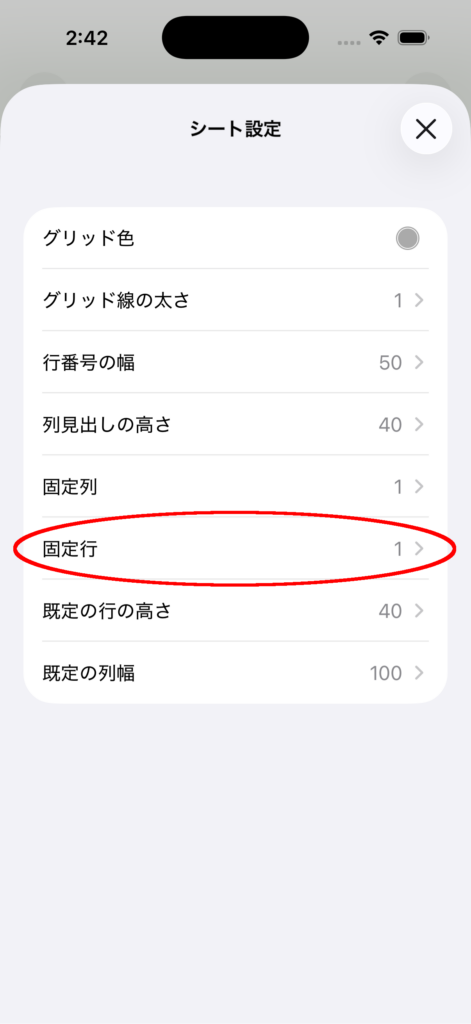
1. Select “Frozen Rows”
Tap Frozen Rows in the settings list.
2. Enter the number of rows to freeze
Enter the number of rows you want to freeze (0 or more), then confirm.
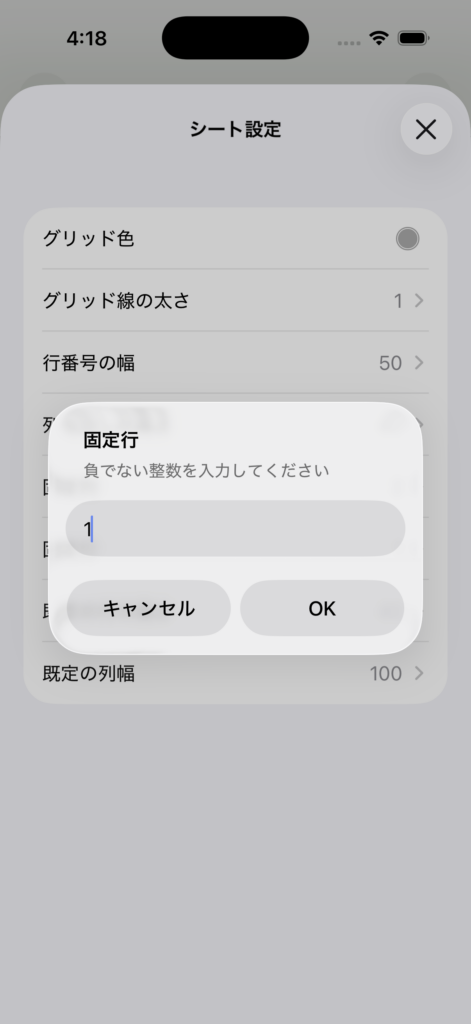
3.Check the result
Even when you scroll vertically, the specified number of rows will remain fixed at the top.
Example when Frozen Rows is set to 2
Notes
- If you set the value to 0, freezing will be disabled.
- If merged cells overlap the freeze boundary, the setting may not be available.
- You can use Undo to revert the setting change.