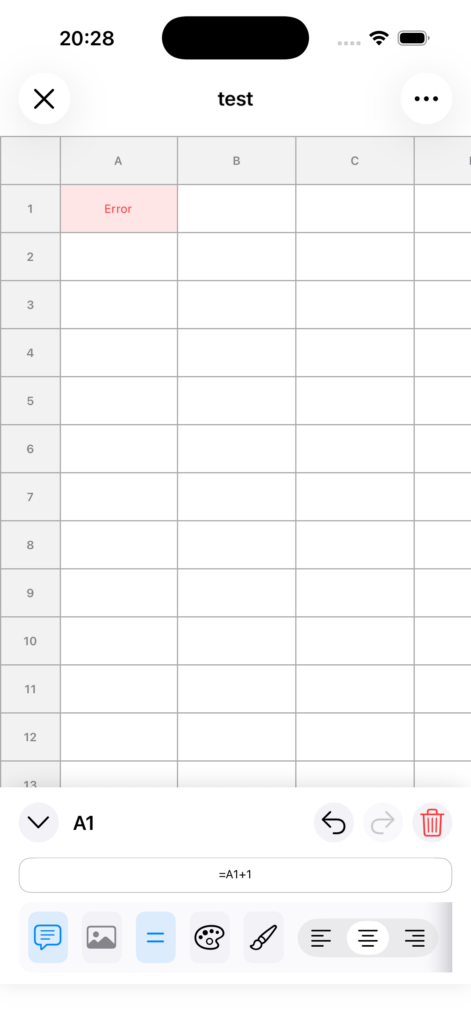
This page explains how to automatically insert cell references by tapping cells while entering a formula.
How to Use
1. Open the cell you want to edit
Tap the cell where you want to enter a formula to open the editing panel.
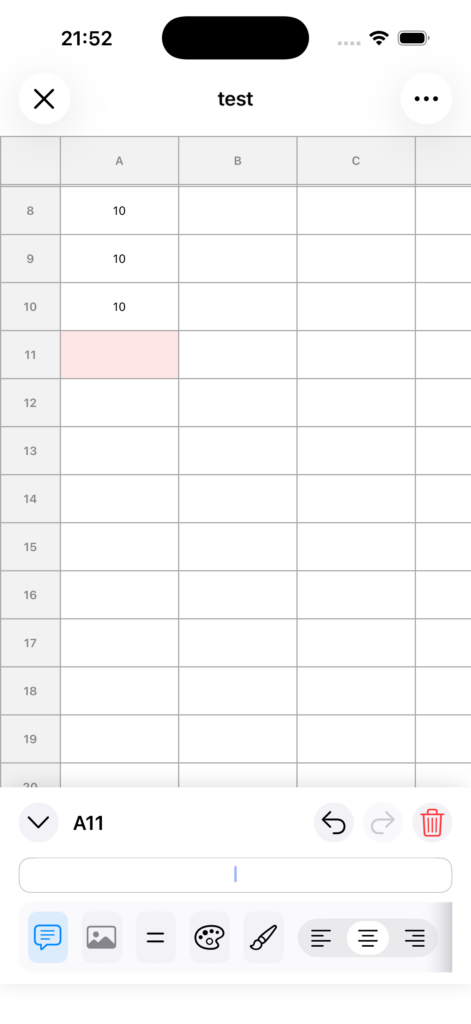
2. Start entering a formula
Enter = in the input field to switch to formula mode.
Example: Start with =SUM( or =.
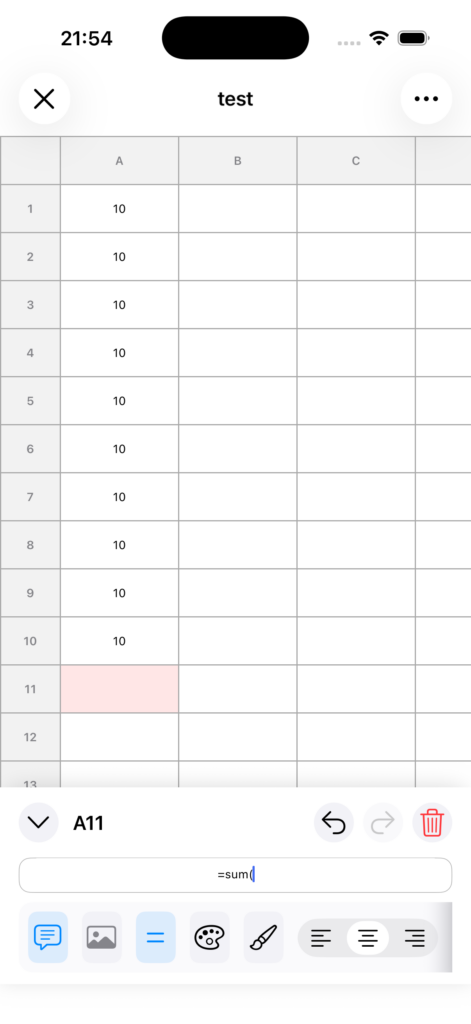
3. Tap the cell you want to reference
Tap a cell on the sheet, and its cell name, such as A1, will be automatically inserted into the input field.
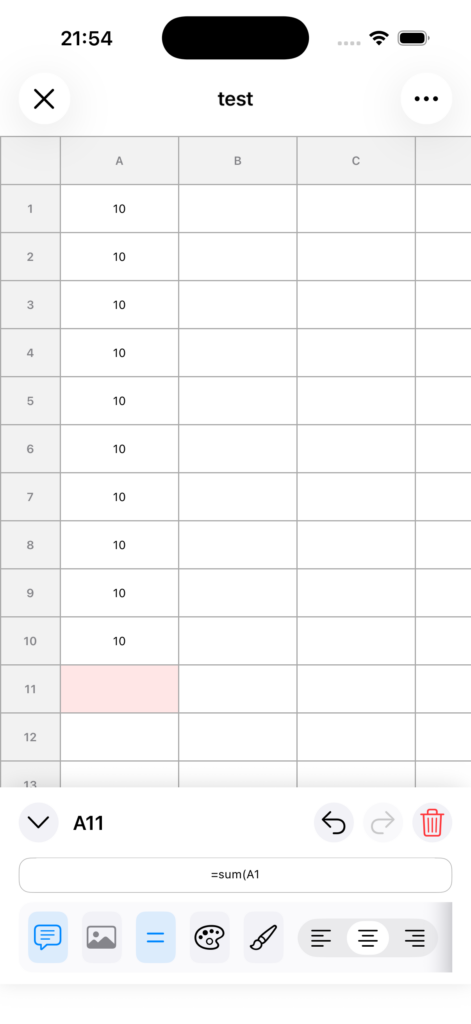
4. Continue entering operators or functions as needed
Complete the formula, for example: =A1+B1 or =SUM(A1:A10).
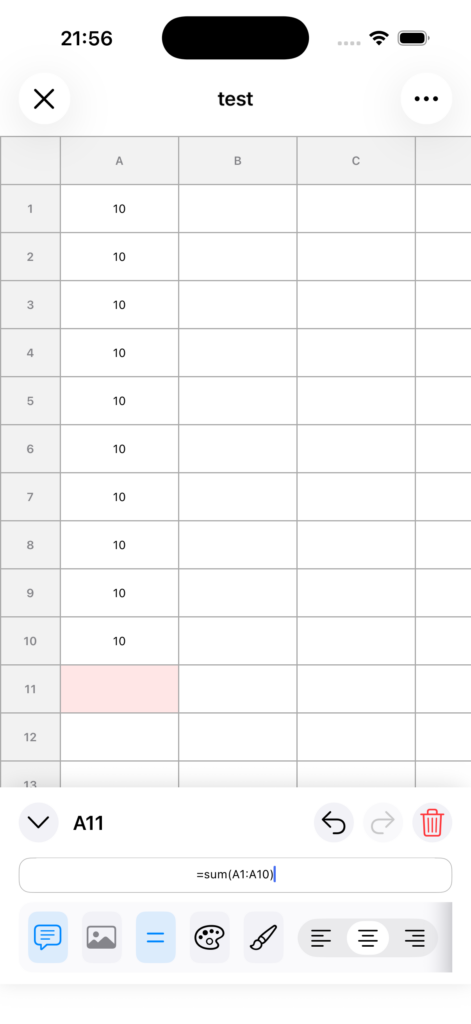
5. Confirm the formula
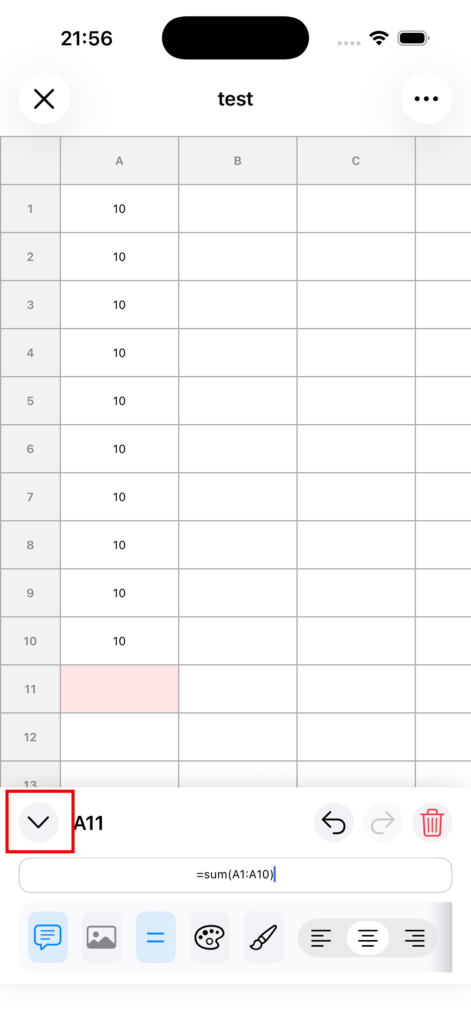
When you close the editor or move to another cell, the formula is confirmed.
Notes
• This feature works only while the input field is in formula editing mode.
• It helps reduce reference mistakes compared with manual typing, so it is especially useful for complex formulas.
• If the result is invalid, Error will be displayed.