
This page explains how to apply formatting to a selected range all at once.
Start Range Formatting
1. Open the top-right menu
Tap the menu (…) in the top-right corner of the sheet screen.

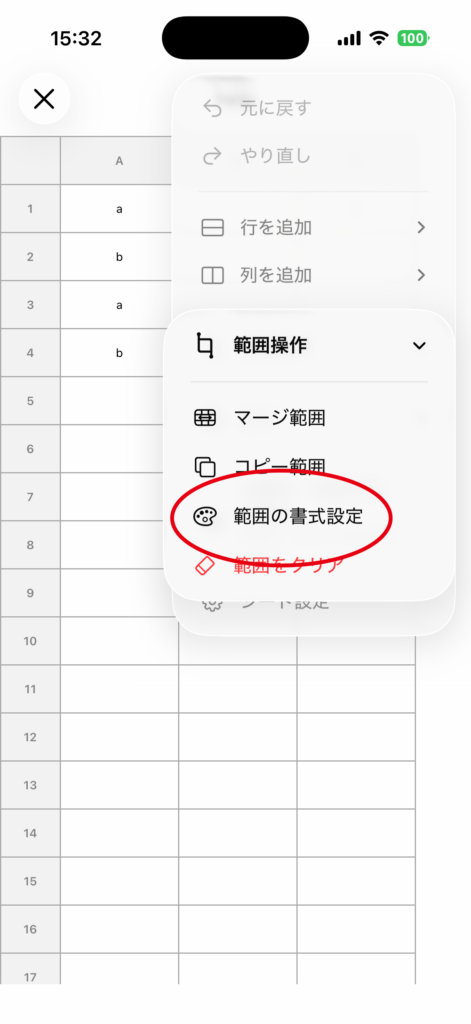
2. Select Range Formatting
Select Range Operations → Range Formatting.
Select the Range to Format
1. Select the starting cell
Tap the upper-left cell of the range you want to format.
2. Select the ending cell
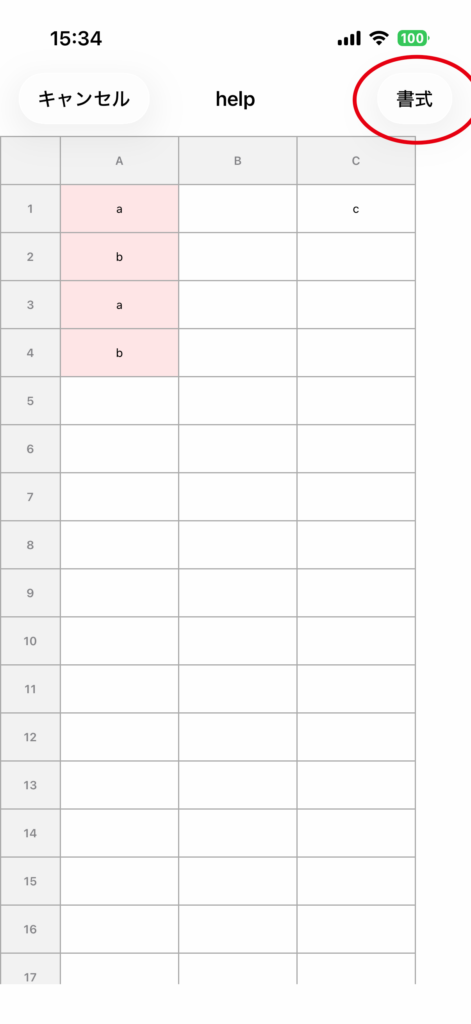
Then tap the lower-right cell to confirm the range.
3. Open the formatting screen
Tap Format in the top-right corner to open the range formatting screen.
Set the Formatting and Apply It
You can configure the following items.
- Text color
- Background color
- Text alignment (left, center, right)
- Font size
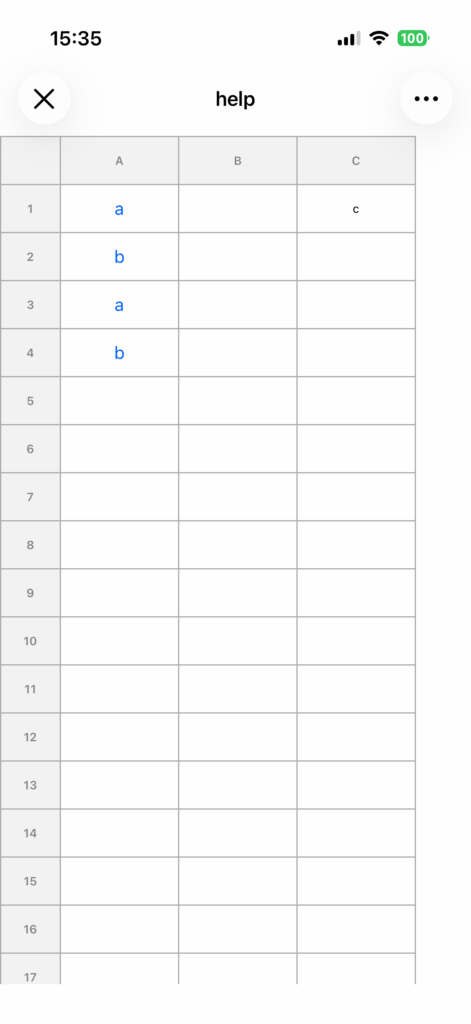
After configuring the settings, tap Apply to apply them to the selected range all at once.


Notes
- If the selected range contains merged cells, the formatting is applied by merged cell unit.
- The content (text and formulas) is not changed. Only the appearance is updated.
- If you want to undo the operation, use Undo.