This page explains how to change row height and column width.
Change Row Height
1. Press and hold the row number
Press and hold the row number of the row you want to resize to open the menu.
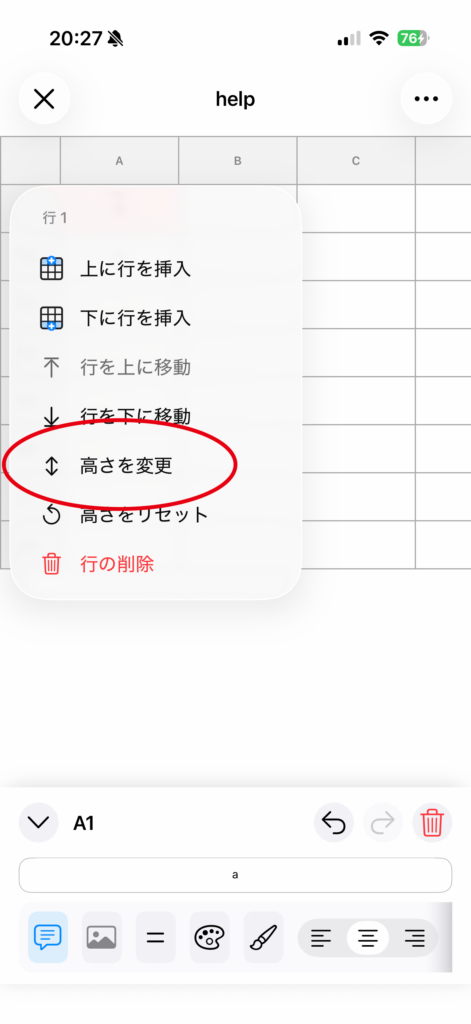
2. Select “Change Height”
Choose Change Height from the menu.
3. Adjust the value
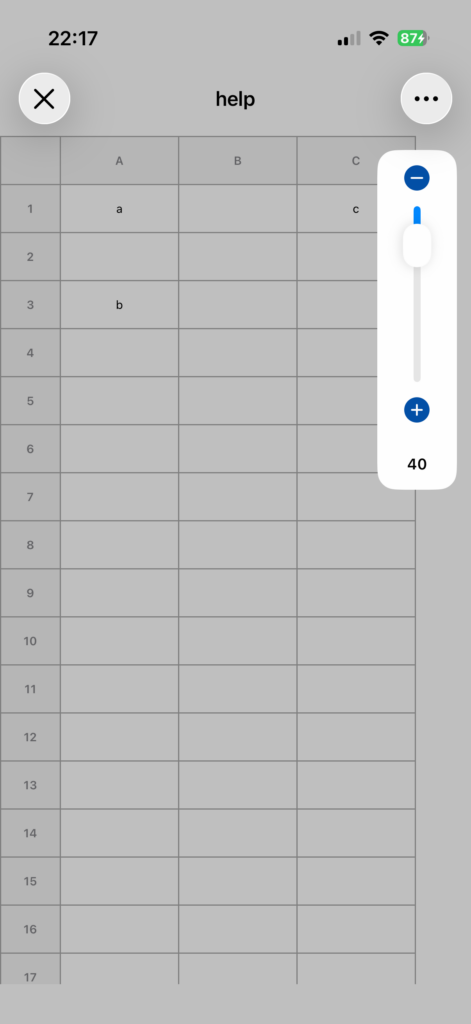
In the adjustment panel that appears, change the height using the slider or the + / – buttons.
Change Column Width
1. Press and hold the column header
Press and hold the column you want to resize (A, B, C, etc.) to open the menu.
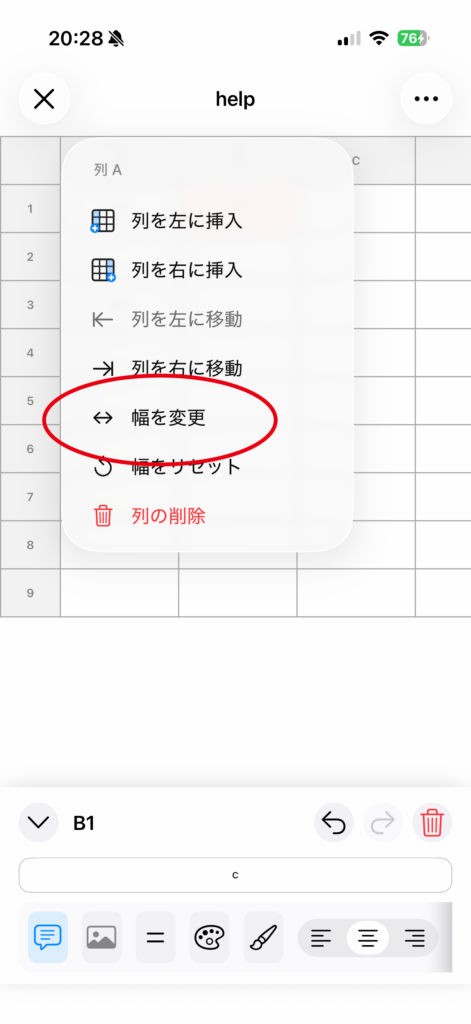
2. Select “Change Width”
Choose “Change Width” from the menu.
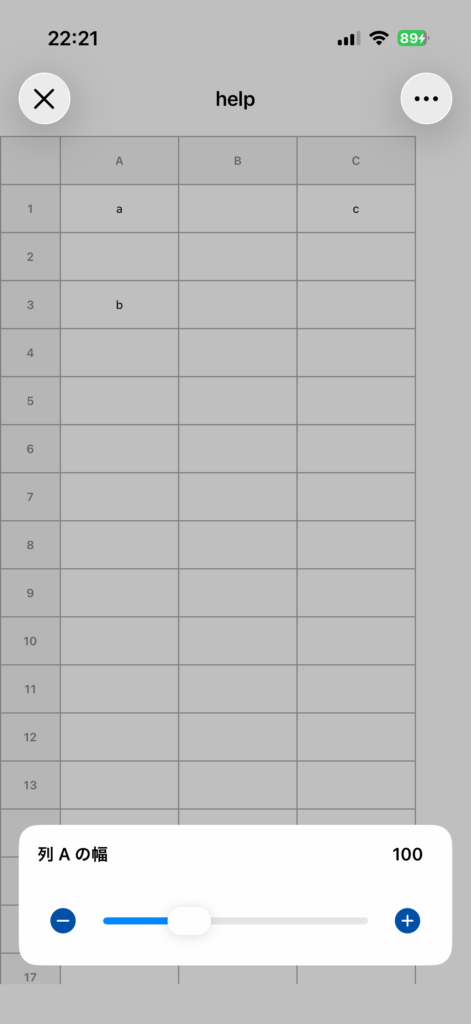
3. Adjust the value
In the adjustment panel that appears, change the width using the slider or the + / – buttons.
Resize Directly by Dragging
You can also drag the boundary between row headers or column headers to directly change the width or height.
Reset to Default
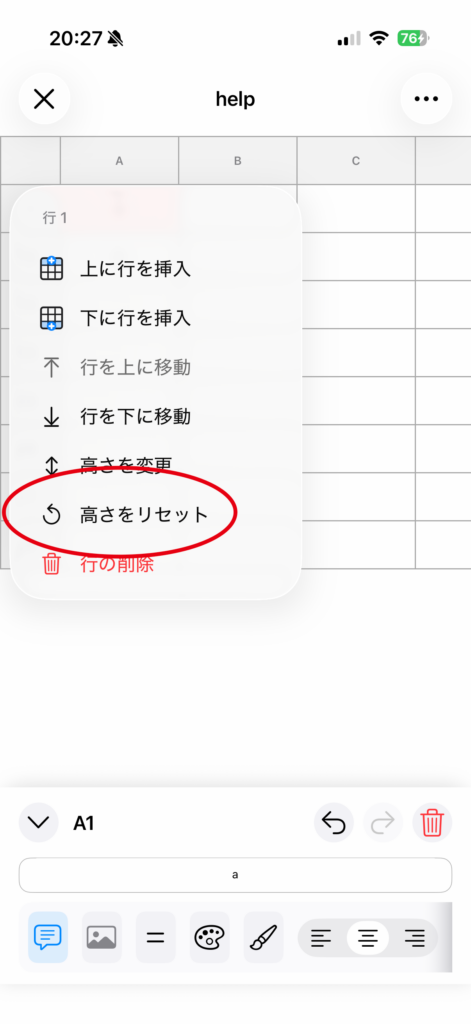
If you select “Reset Height” or “Reset Width” from the menu, the individually changed value will be restored to its default state.
Notes
変Your changes are saved in the sheet and will still be applied the next time you open it.