
This page explains how to copy a range of multiple cells and paste it into another location.
Copy a Range
1. Start range selection mode
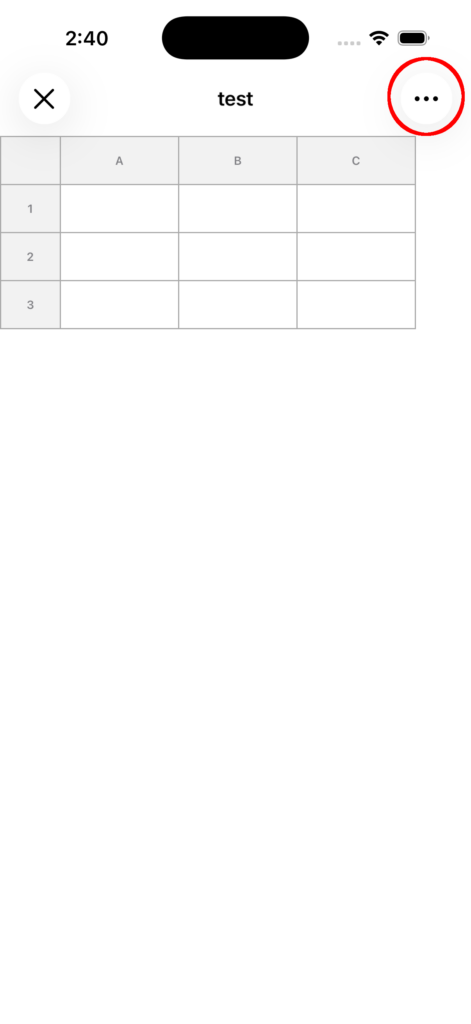
Open the top-right menu (…), then select Range Operations → Copy Range.
2. Select the range you want to copy
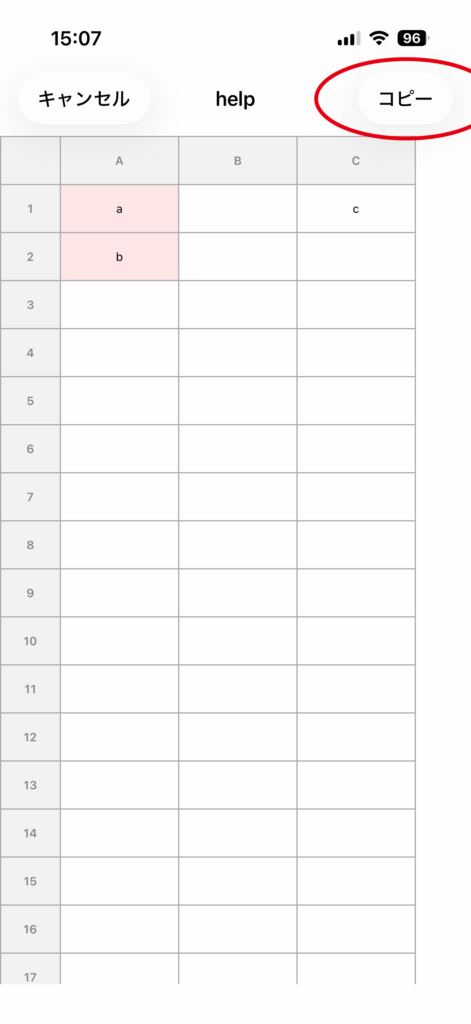
Tap the starting cell, then tap the ending cell to specify the range.
3. Copy the range
Tap Copy in the top-right corner to copy the selected range.
Paste to Another Location
1. Select the top-left destination cell
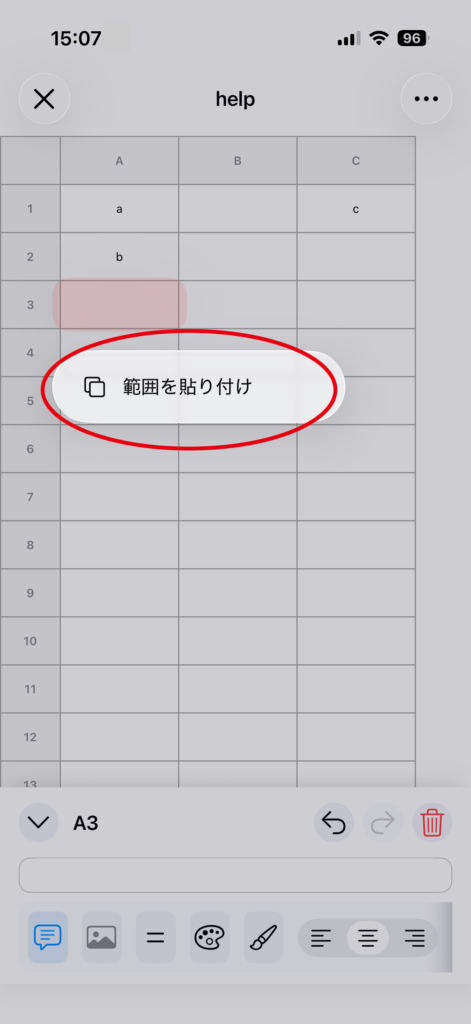
Tap the top-left cell of the location where you want to place the copied range.
2. Paste from the cell menu
Open the cell menu (for example, by pressing and holding the cell), then select Paste Range.
3. Pasting complete
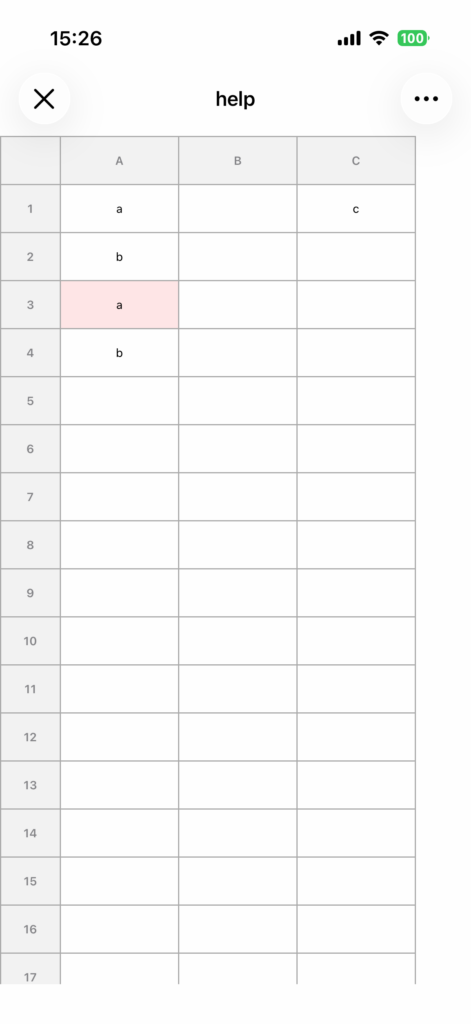
The copied range will be pasted at the specified location in the same size as the original.
Notes
• You cannot paste if the destination is outside the sheet range or overlaps merged cells.
• If you paste cells that contain formulas, the references will be automatically adjusted to match the paste location.
• If you make a mistake, you can use Undo to revert it.