This page explains how to export a sheet as CSV, PDF, or an image.
Open the Export Menu
1. Open the menu in the top-right corner
Tap the menu button (…) in the top-right corner of the sheet screen.
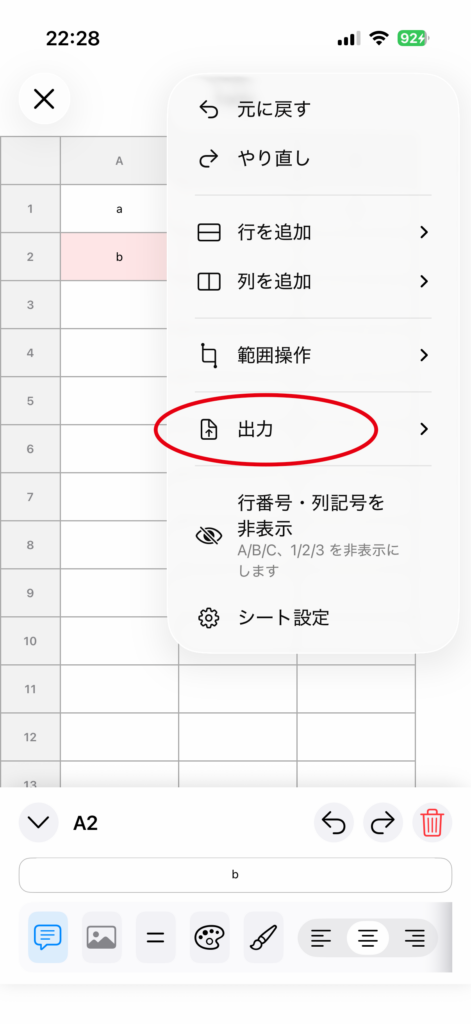
2. Select “Export”
Tap Export in the menu to choose an export format.
Export as CSV
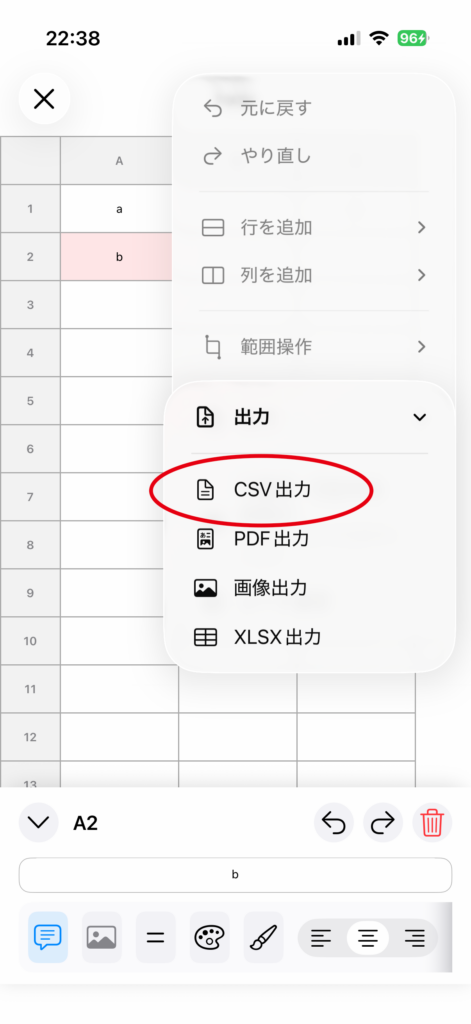
1. Select “Export as CSV”
Choose Export as CSV from the export menu.
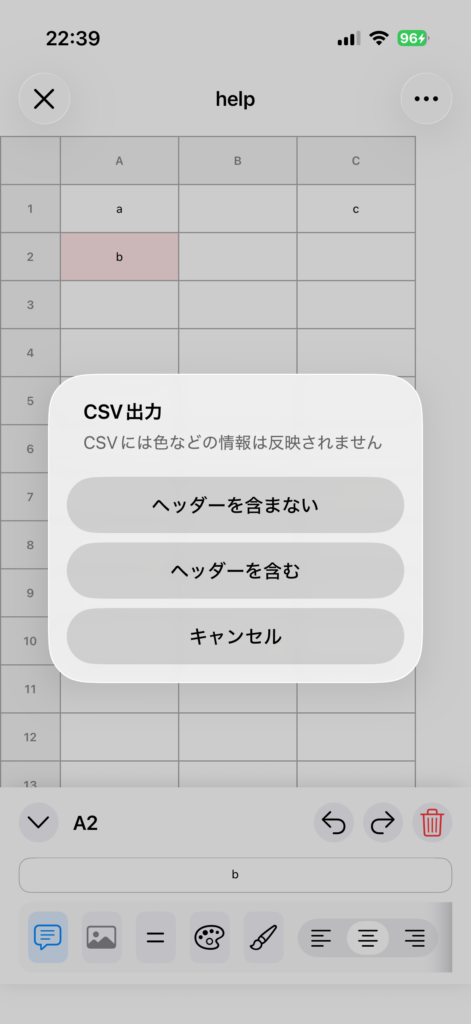
2. Choose whether to include headers
Select either Without Headers or With Headers.
3. Choose where to share or save
When the share sheet opens, choose an app to save or share the file, such as Files or Mail.
Export as PDF
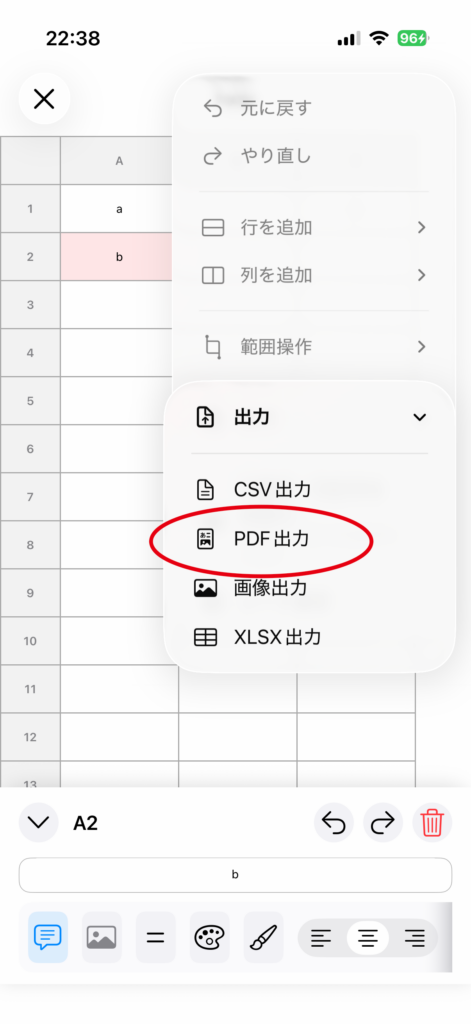
1. Select “Export as PDF”
Choose Export as PDF from the export menu.
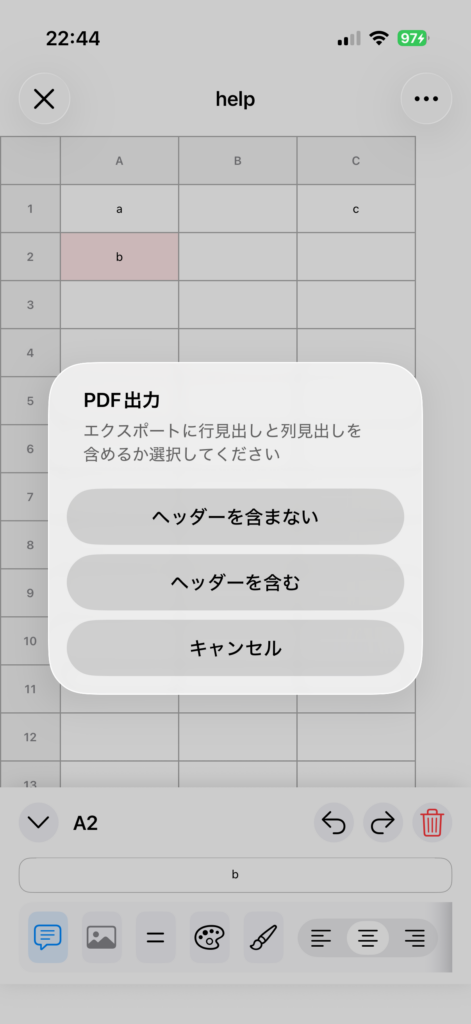
2. Choose whether to include headers
Select either Without Headers or With Headers.
3. Choose where to share or save
Share or save the generated PDF.
Export as an Image
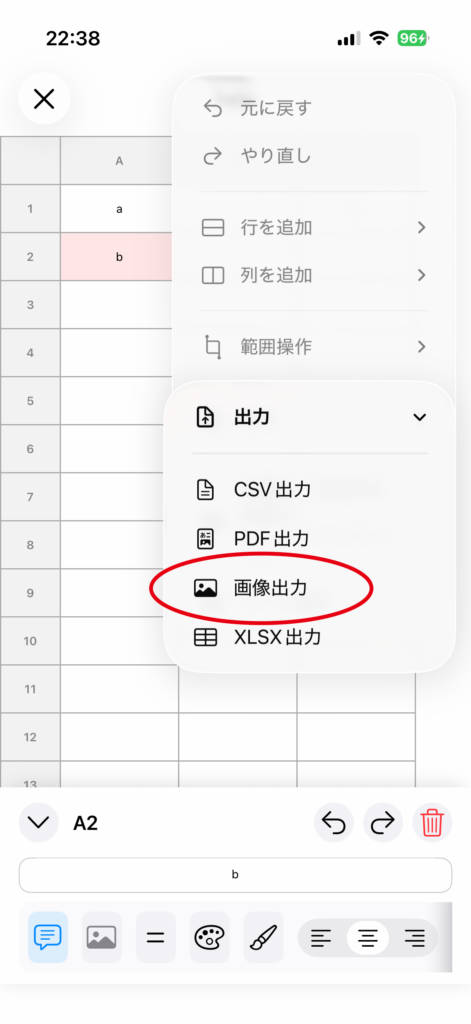
1. Select “Export as Image”
Choose Export as Image from the export menu.
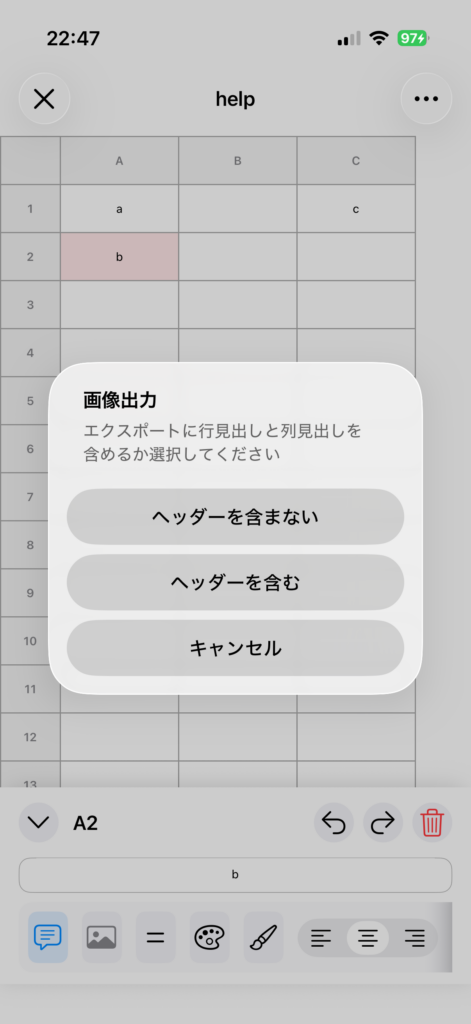
2. Choose whether to include headers
Select either Without Headers or With Headers.
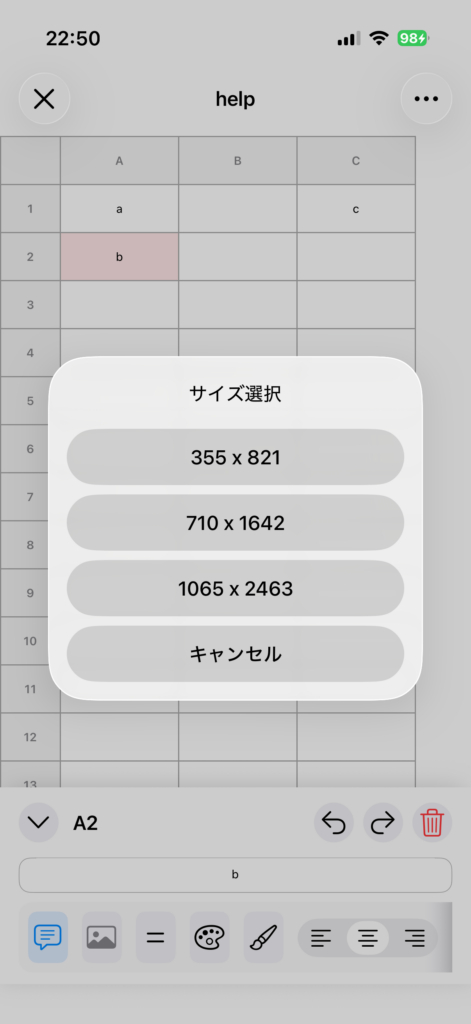
3. Choose an image size
Select the size you want from the displayed size options.
4. Choose where to share or save
Share or save the generated image.
Notes
• CSV is a format mainly for text data. Appearance settings such as colors are not included.
• If exporting takes time, please wait until the process is complete.