
This page explains how to merge and unmerge cells.
Merge Cells
1. Tap the Select button in the top-right corner.
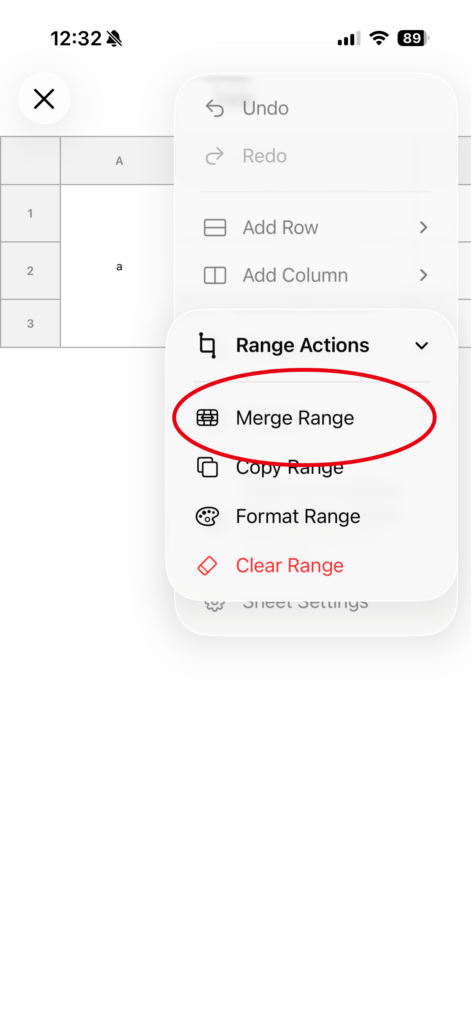
Select the starting cell and ending cell of the range you want to merge.
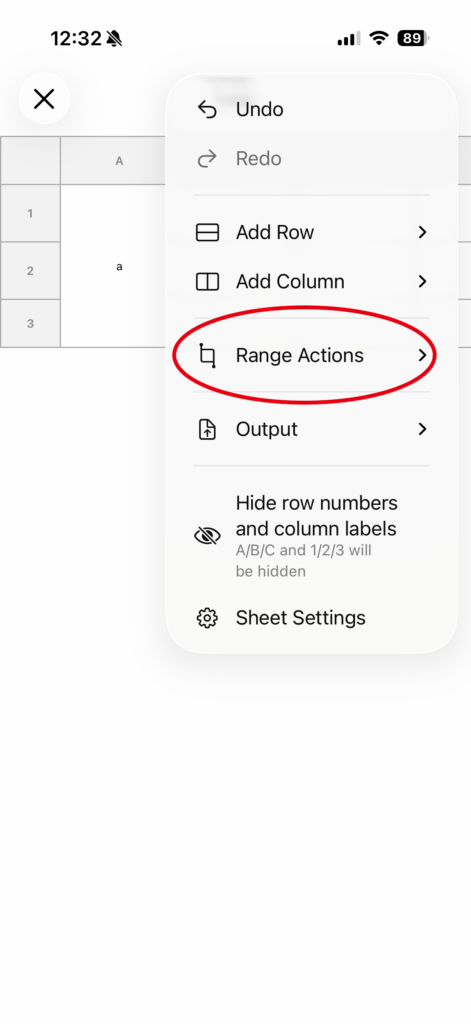
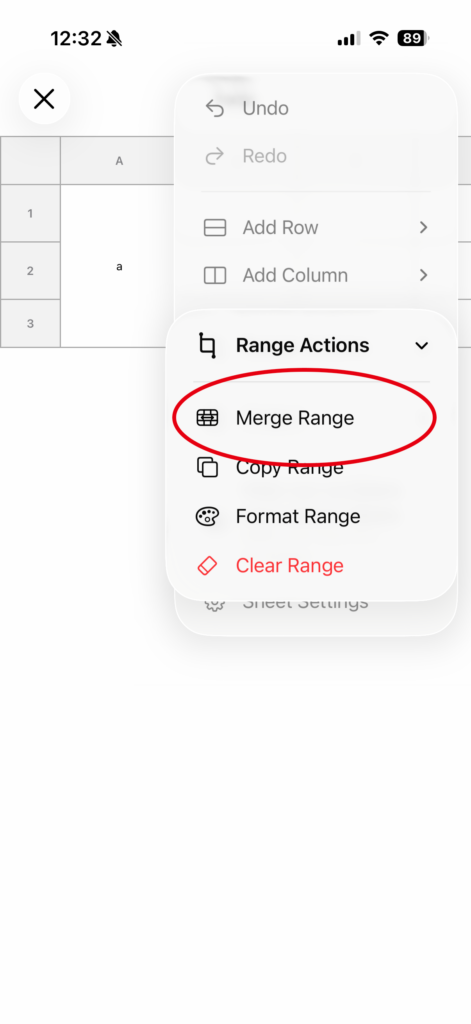
2. Select the range you want to merge.
Tap the first cell to set the start position, then tap the second cell to set the end position.

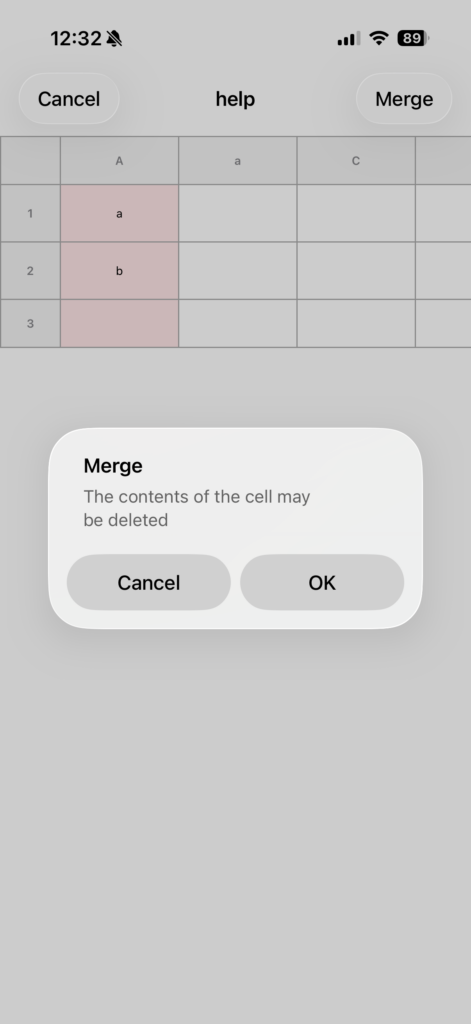
3. Merging four cells
Tap Merge in the top-right corner. When the confirmation dialog appears, select OK.
Unmerge Cells
Method 1: Unmerge from range selection
Tap a merged cell to select it, then tap Unmerge in the top-right corner.
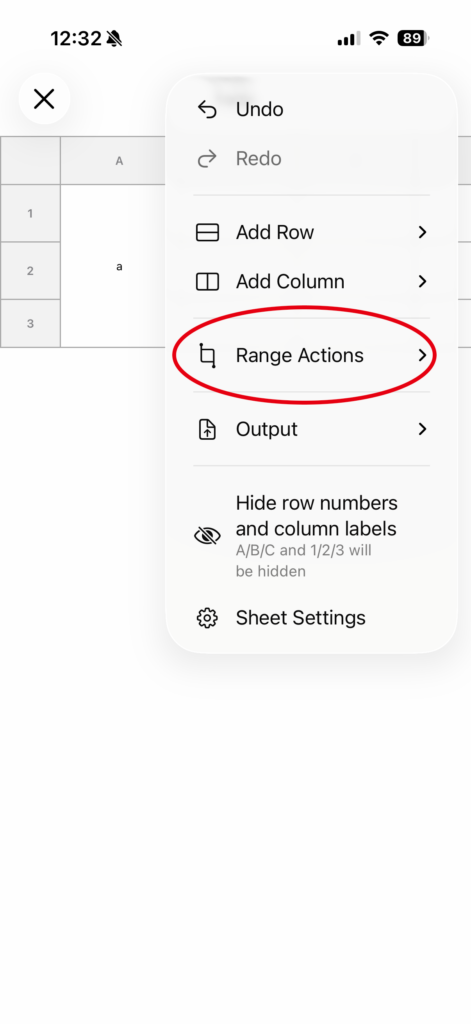

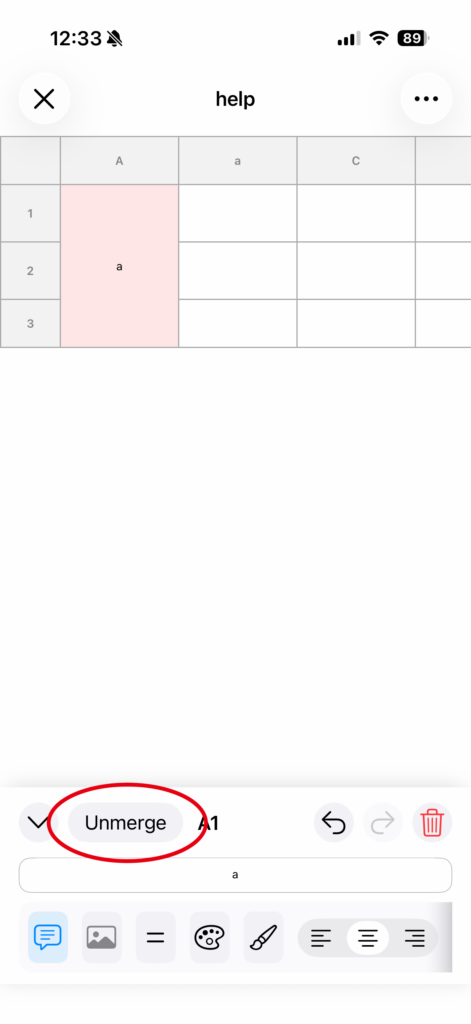
Method 2: Unmerge from the cell editing panel
When you open a merged cell, an Unmerge button appears in the editing panel.
Tap this button to unmerge the cells.
Notes
• When merging cells, the contents of cells other than the top-left cell may be deleted.
• You cannot merge a range that overlaps with another merged range.
• If you make a mistake, you can use Undo to revert the action.