This page explains how to change the grid color and grid line thickness for the entire sheet.
Open the Settings Screen
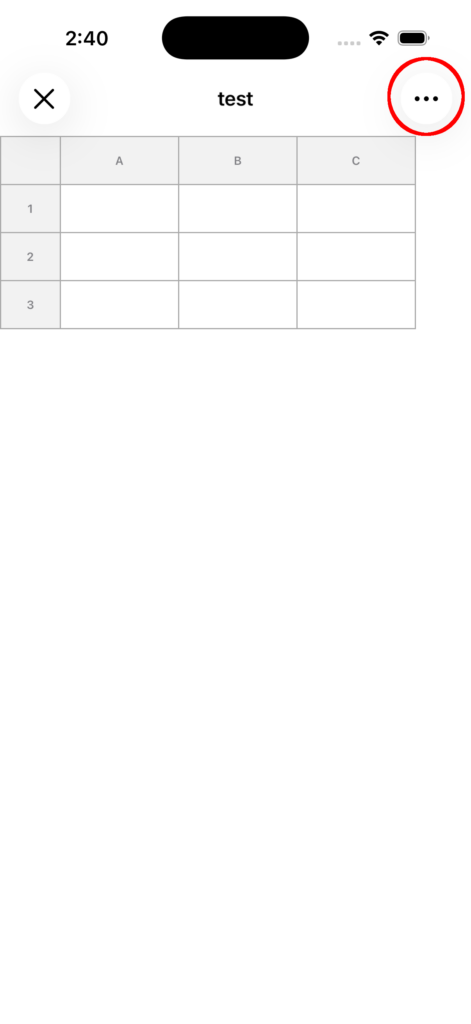
1. Open the top-right menu
Tap the menu (…) in the top-right corner of the sheet screen.
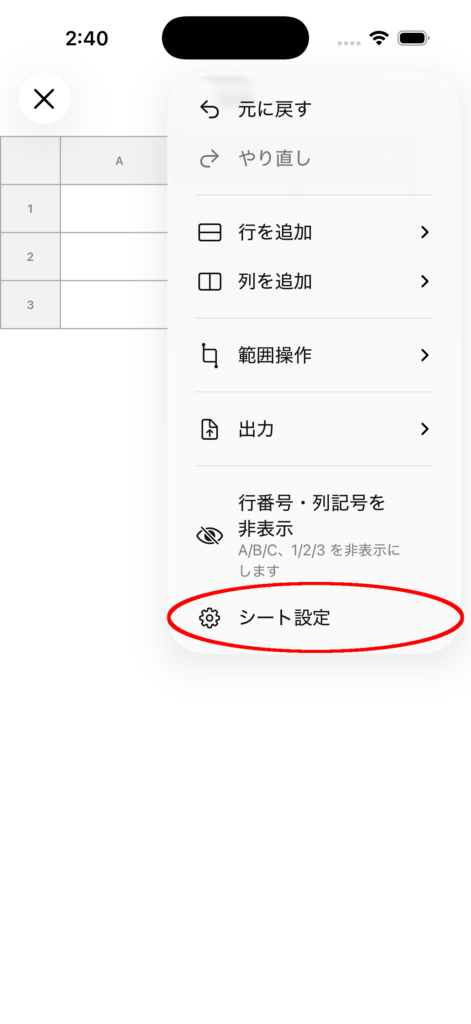
2. Open Sheet Settings
Select Sheet Settings.
Set the Default Row Height
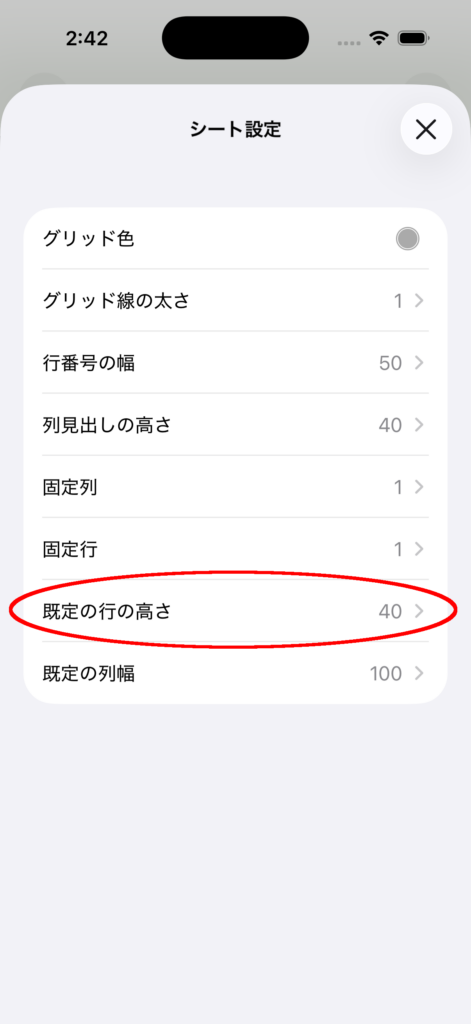
1. Select “Default Row Height”
設Tap Default Row Height in the settings list.
2. Adjust the value
In the adjustment panel that appears, change the value using the slider or the + / – buttons.
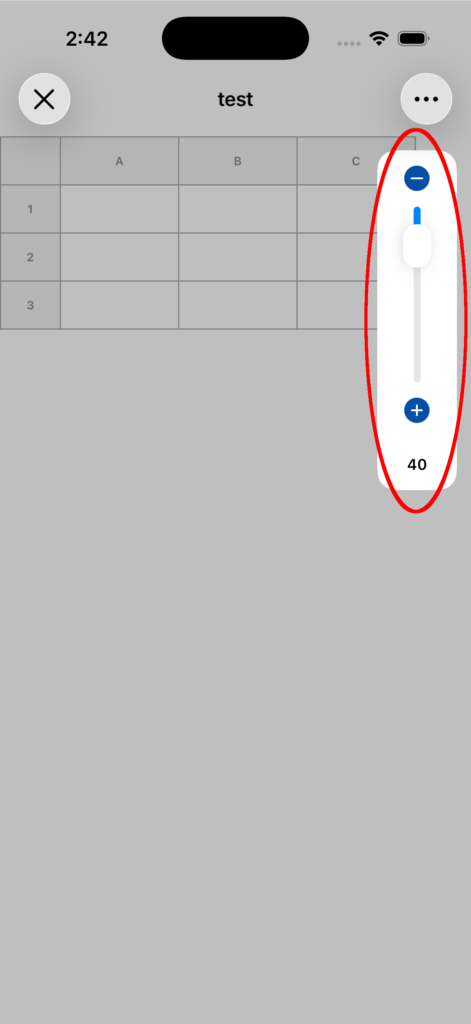
3. Setting complete
The default row height will be saved as the new standard value.
Set the Default Column Width
1. Select “Default Column Width”
Tap Default Column Width in the settings list.
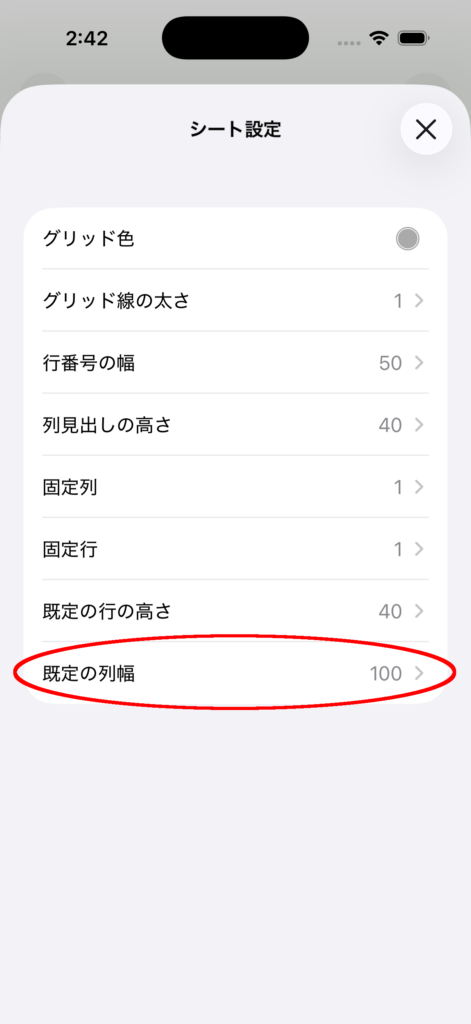
2. Adjust the value
In the adjustment panel that appears, change the value using the slider or the + / – buttons.
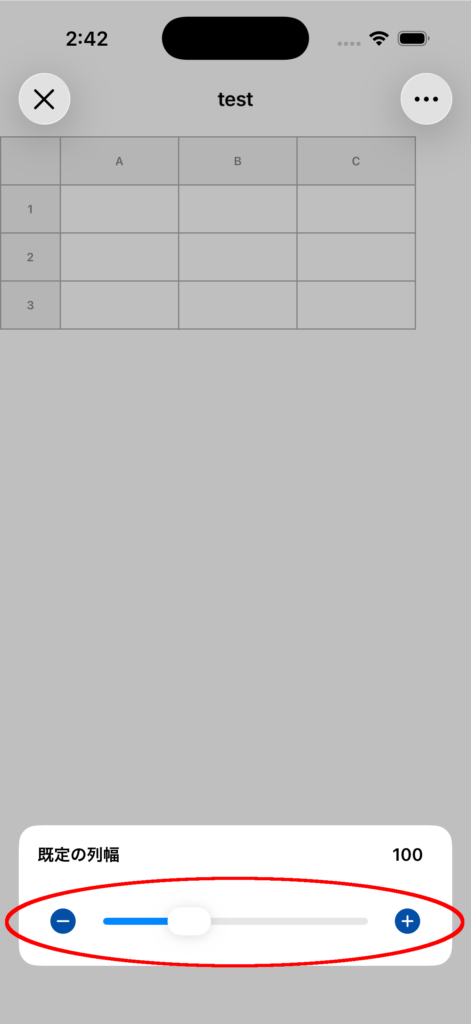
3. Setting complete
The default column width will be saved as the new standard value.
Notes
- Rows and columns whose height or width has already been changed individually will keep their individual settings.
- This default value will be applied to rows or columns after they are reset.
- If you change it by mistake, you can use Undo to revert it.